
School Edition
Everything in the standard app, plus student management, progress tracking, and discrete scoring — designed for speech therapists, special education teachers, and classroom educators working with multiple students.

Educational content only. Not medical advice.
Screenshots
Why a School Edition?
When you're working with multiple students, you need more than a learning app — you need a teaching tool. The School Edition adds the documentation and tracking features that professionals require, while keeping the same engaging experience for students.
Student Management
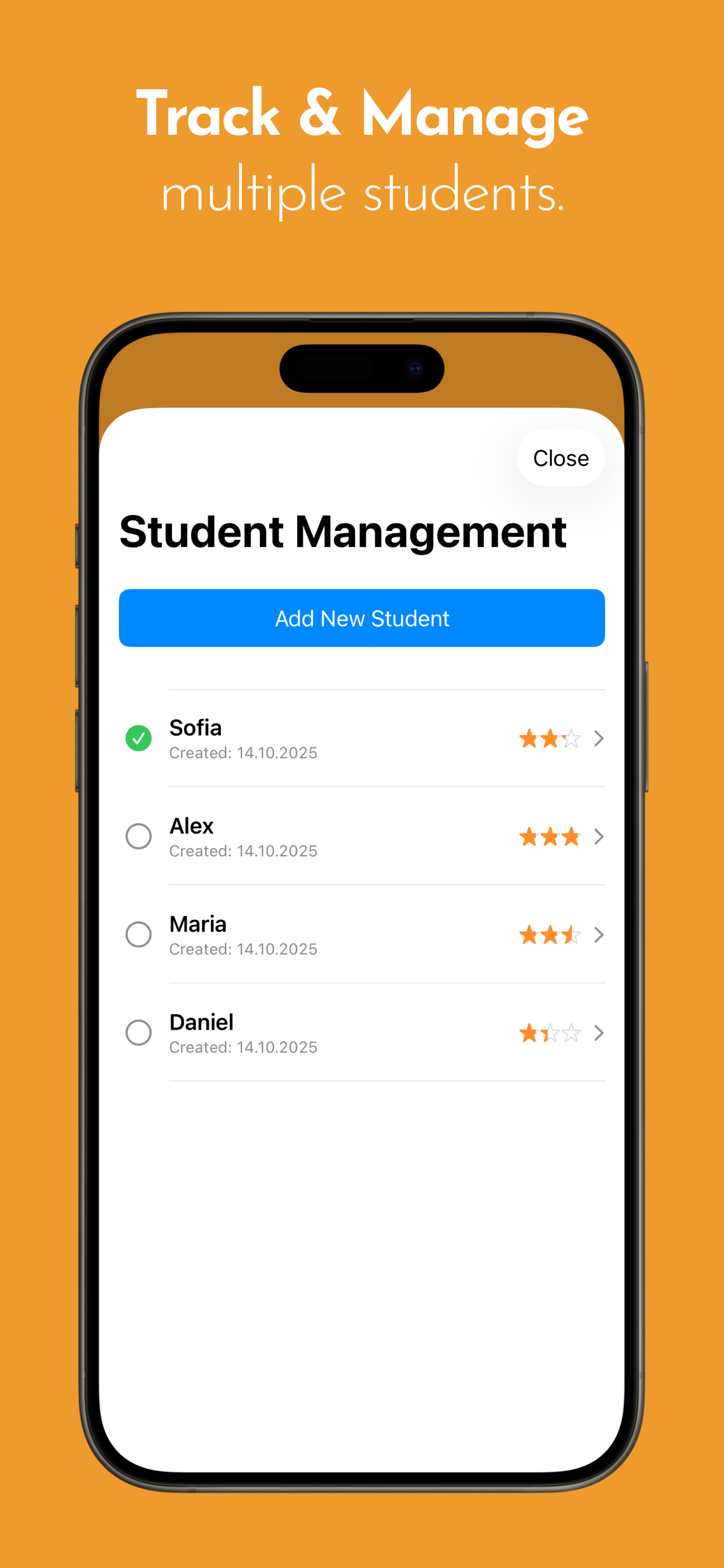
Create individual profiles for each student. Switch between students easily. Each student has their own history, progress data, and scores — completely separate.
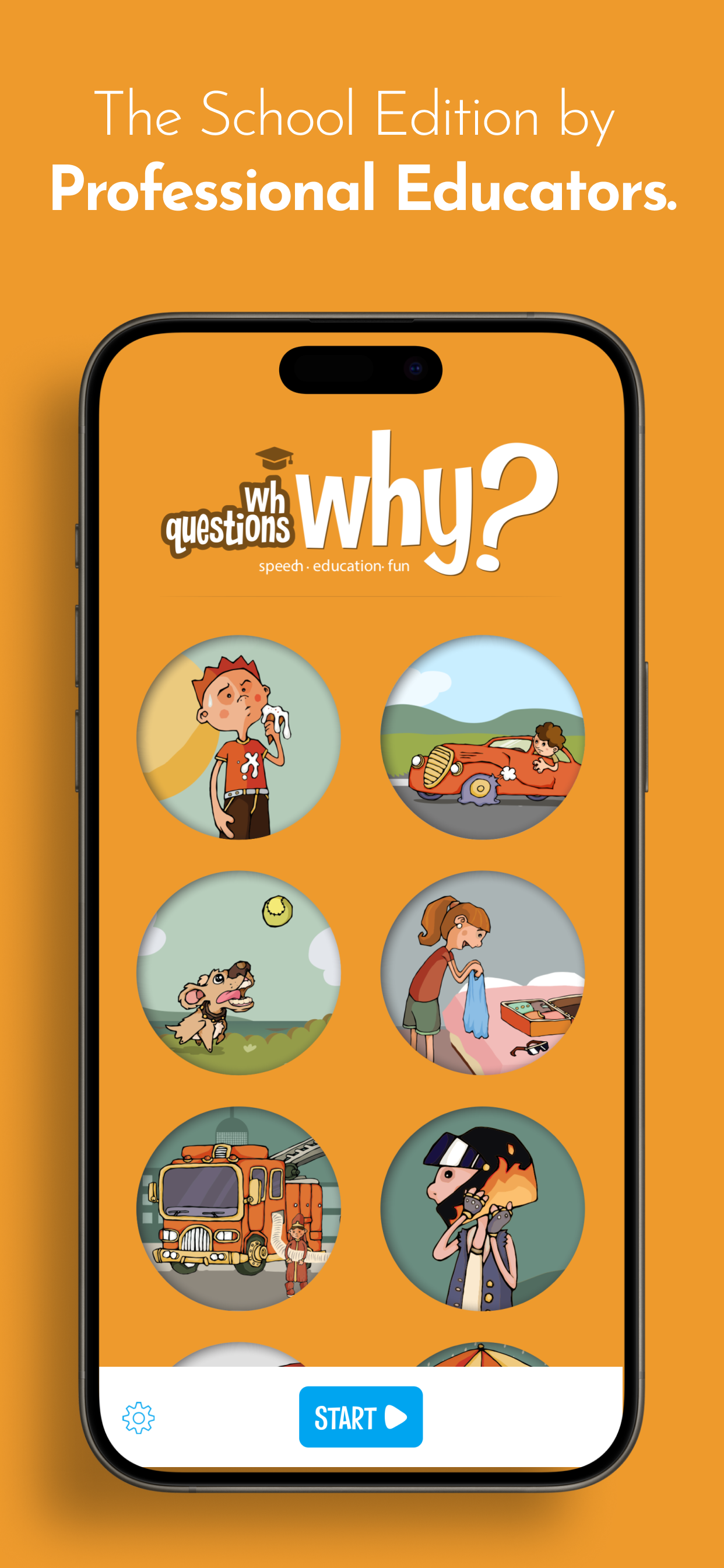
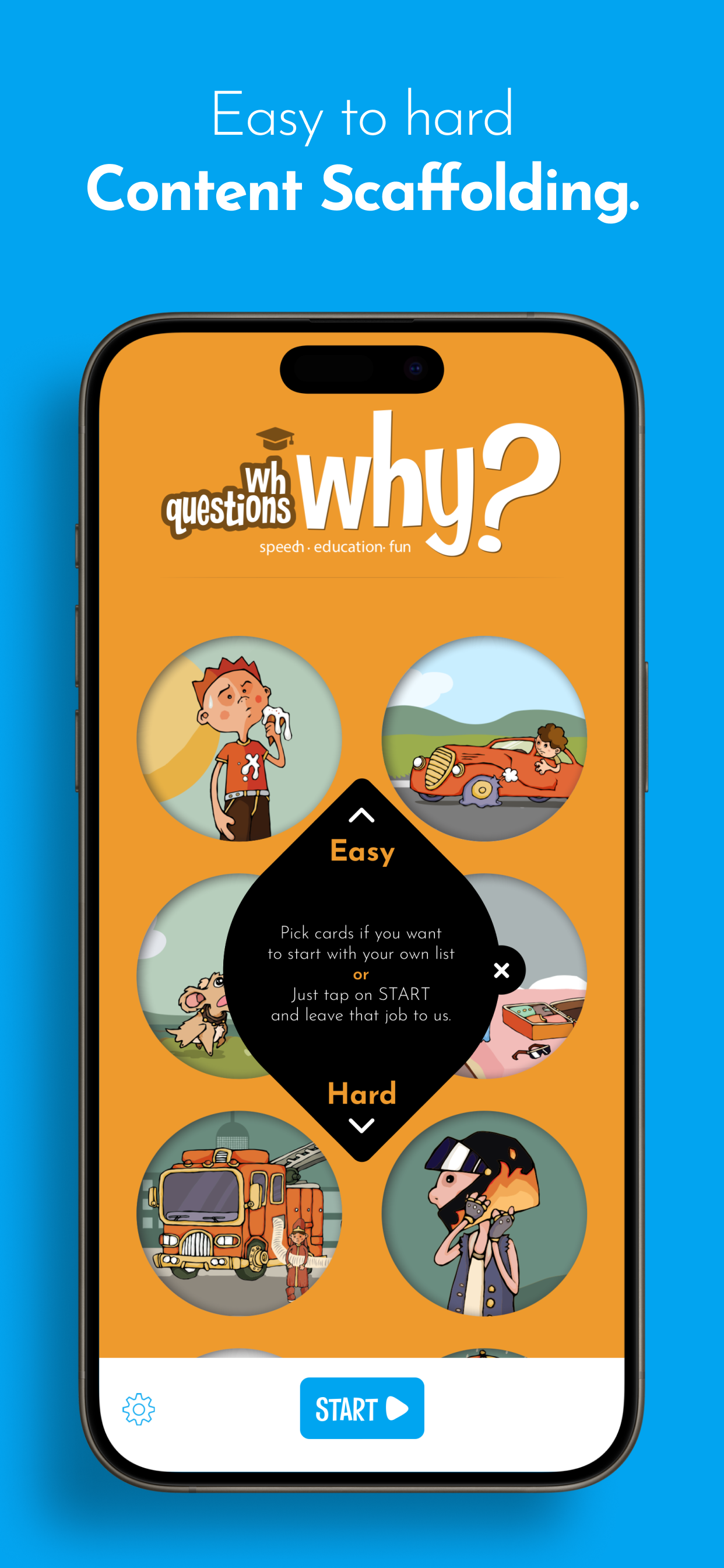
Add students with just a name. No complex setup, no required information beyond what you need. Each student's game setup is saved and restored automatically, and the Start button starts any student's session — or a Free Play session without adding a student — in one tap.
Progress Tracking
Daily charts
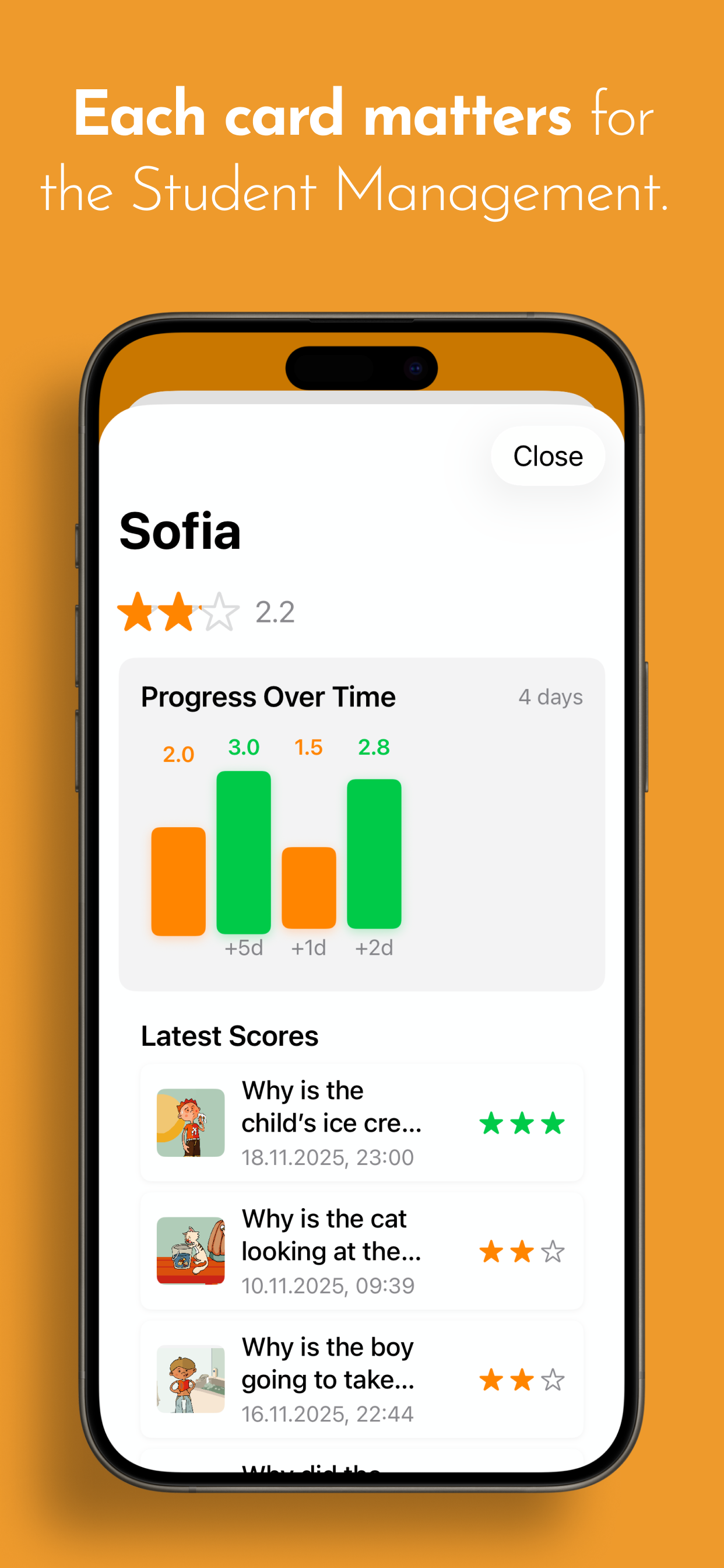
View each student's average scores over time. See learning trends, not just individual sessions.
Session history
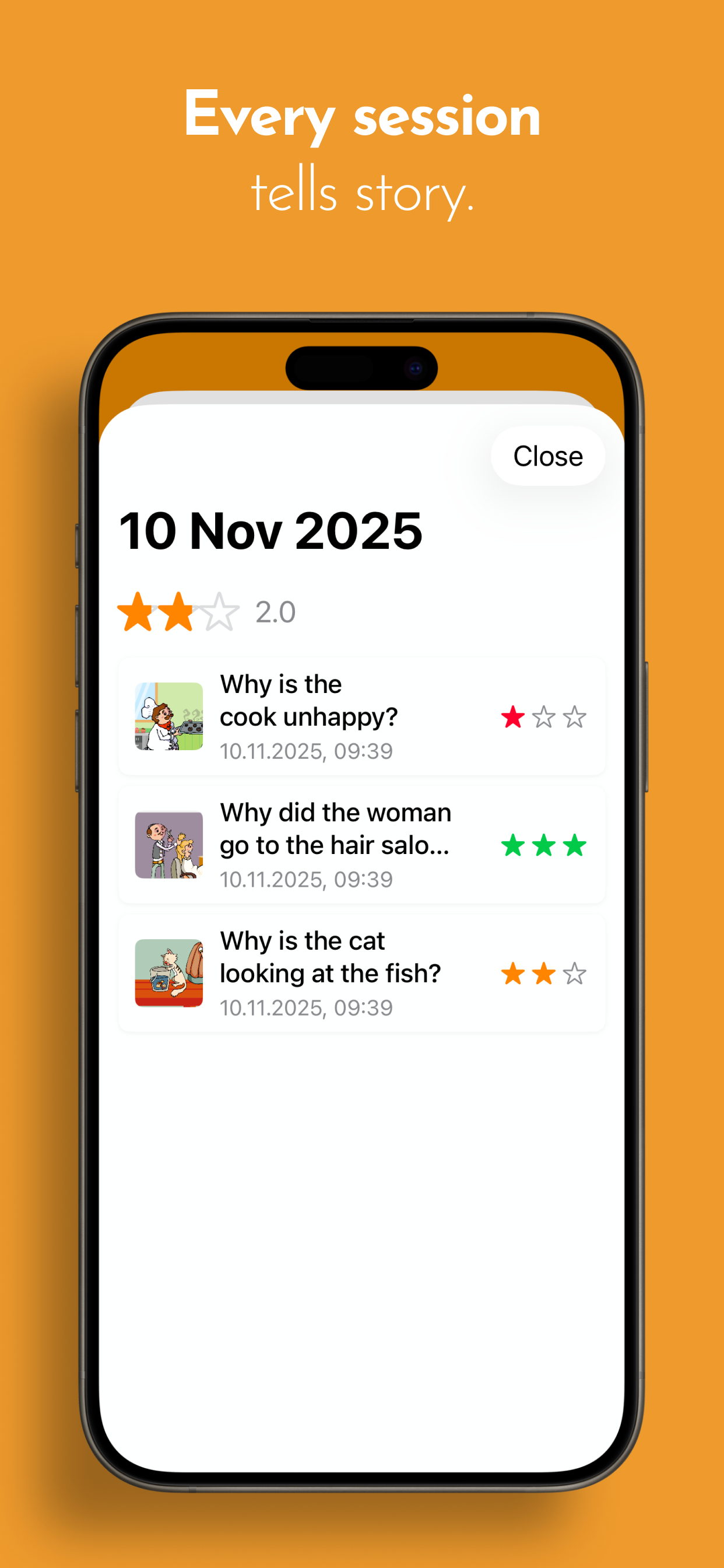
Tap any day to see exactly which cards were practiced and how each one went.
Card-level detail
Know which specific scenarios a student struggles with and which they've mastered.
All data syncs across your devices via iCloud. Set up once, access everywhere — and your data persists through app reinstalls.
Discrete Scoring
This feature addresses a real classroom challenge: how do you assess student responses without the student seeing "wrong" and becoming discouraged?
The scoring interface uses visual markers that students can see but don't interpret as pass/fail. You tap to record your assessment in real-time. Students stay motivated. You get accurate data.
Scores use a three-level system (reflected in green, orange, and red throughout the interface) that captures performance without over-complicating documentation.
All Core Features Included
Designed for Professional Use
IEP documentation
Session data supports therapy documentation and progress monitoring.
Flexible implementation
Use as a 1:1 therapy tool, small group activity, or independent practice station.
Works across devices
Start a session on your clinic iPad, review data on your personal iPhone.
Pricing
One-time purchase. No subscriptions, no per-student fees, no annual renewals. Buy once, use with unlimited students.
FAQ
About the App
Who can use it?
Is literacy required?
What Will My Child Learn?
- Cause-effect relationship
- Purpose-result relationship
- Receptive and expressive language skills
- Action naming and describing the given situation
- Answering the asked question appropriately
- Answering 5W1H questions
- Making logical inferences
- Reasoning and creative thinking using clues
How to Use?
Using 5W1H is both easy and fun.
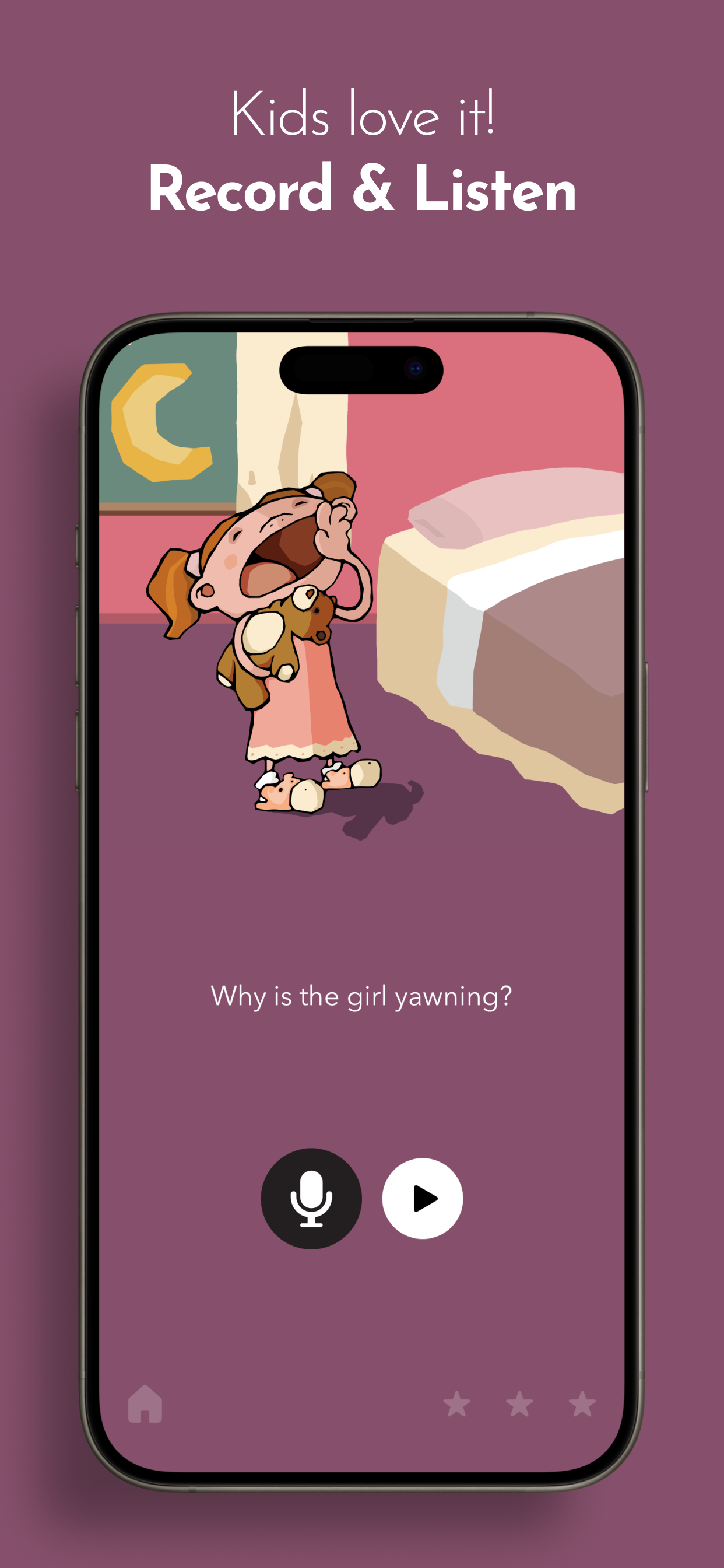
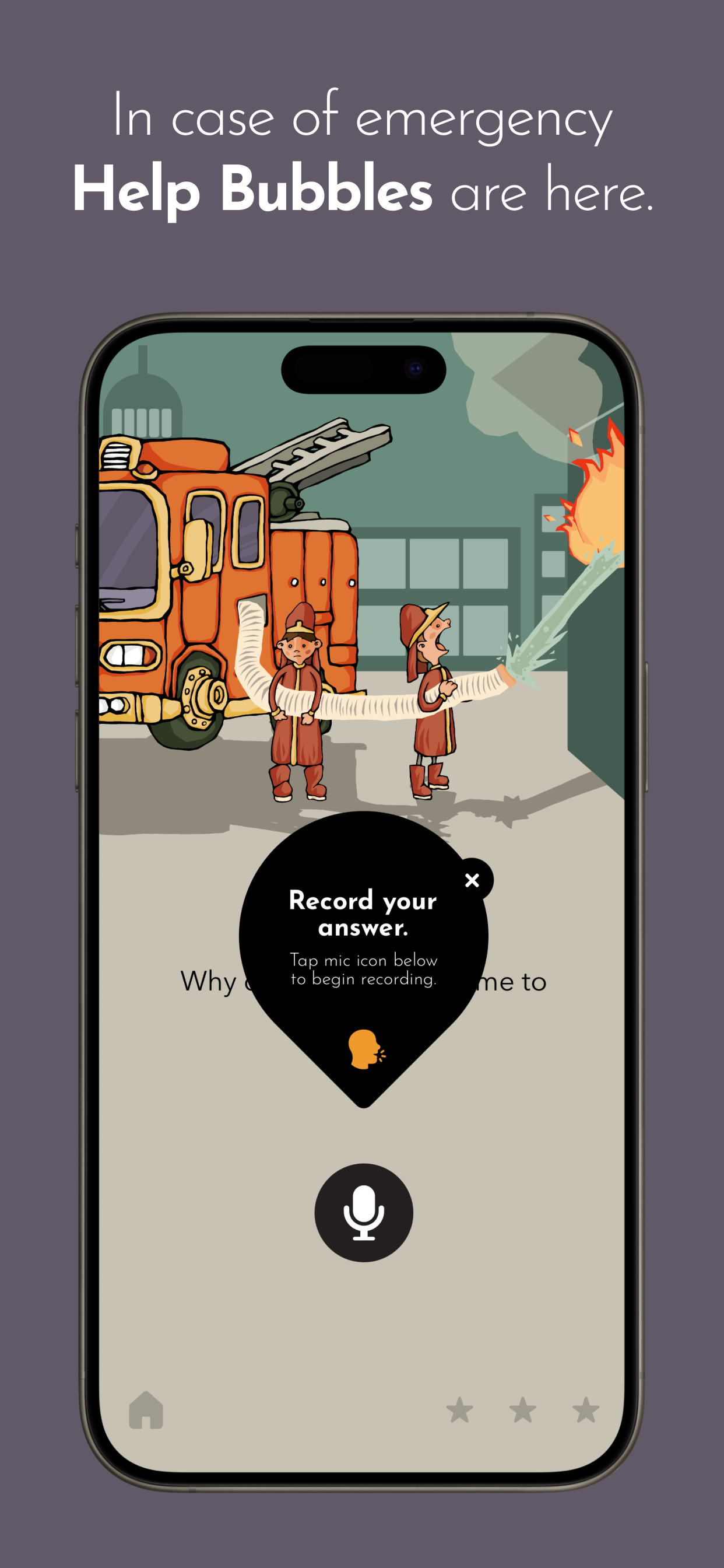
After listening to the questions, record and listen to your child's answers with the button with the microphone icon on it. Children love listening to their own voices.
Then, the correct answer we voiced for you will be voiced automatically. This will allow the child to compare their own answer and the correct answer by receiving auditory feedback.
It will be left to you to repeat this exercise with all cards and enjoy the fun, educational and quality time you will spend with your child.
Only 'Why' Question?
You can easily ask questions other than 'Why' for what happens to our cute characters.
5W: What, Where, When, How, Why
1H: Who
For example, for the little baby sleeping in his crib and his mother covering him, we asked this:
- Why is his mother covering the baby?
You can also ask:
- Who is covering the baby?
- What is the mother covering the baby with?
- Where is the baby sleeping?
- When do babies sleep?
- How is his mother covering the baby?
Can it be used for Special Children?
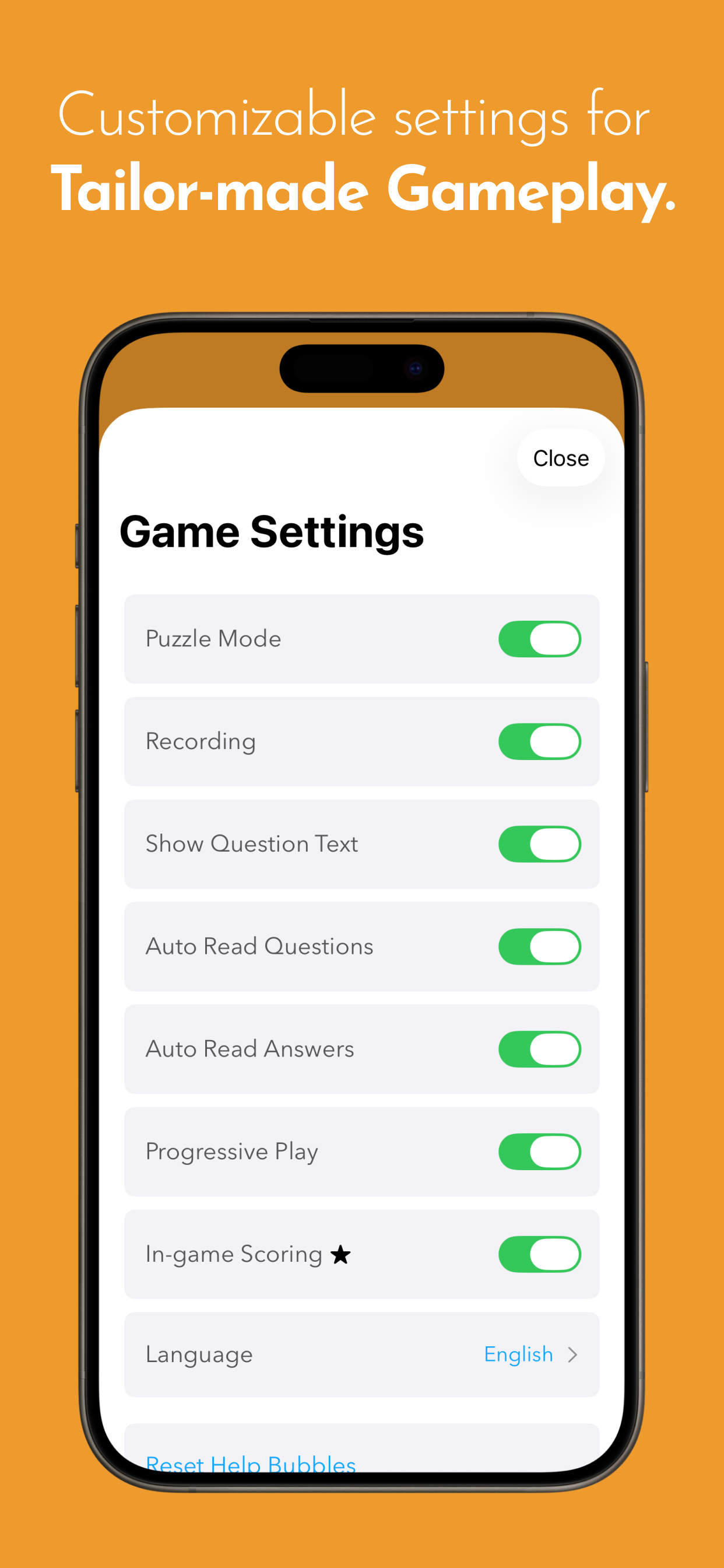
5W1H can be used not only with children with normal development, but also with special children experiencing special conditions. You can easily shape the usage and appearance of 5W1H according to your special needs by using the Settings menu according to your child's development level.
- Language disorder (Delayed language and speech, specific language impairment)
- Hearing Impairment
- Autism Spectrum Disorders
- Intellectual Disability
- Developmental Delay
- Learning Disability
Getting Started
How do I add a student?
How do I select which student I'm working with?
Can I switch between students easily?
In-Game Scoring
How does the scoring work during gameplay?
After the student answers, tap the star rating that matches their performance:
- ★ (red) = Needs work or couldn't complete
- ★★ (orange) = Partially correct or getting there
- ★★★ (green) = Successfully completed
The score saves automatically to the selected student's profile.
Do I have to score every card?
Can I turn off the scoring feature?
Progress & Data
How do I view a student's detailed progress?
What does the progress chart show?
What do the color zones in the chart mean?
- Green (2.5-3.0) = Excellent performance, mastery level
- Orange (1.5-2.4) = Good progress, developing skill
- Red (below 1.5) = Needs more practice and support
Game Settings Explained
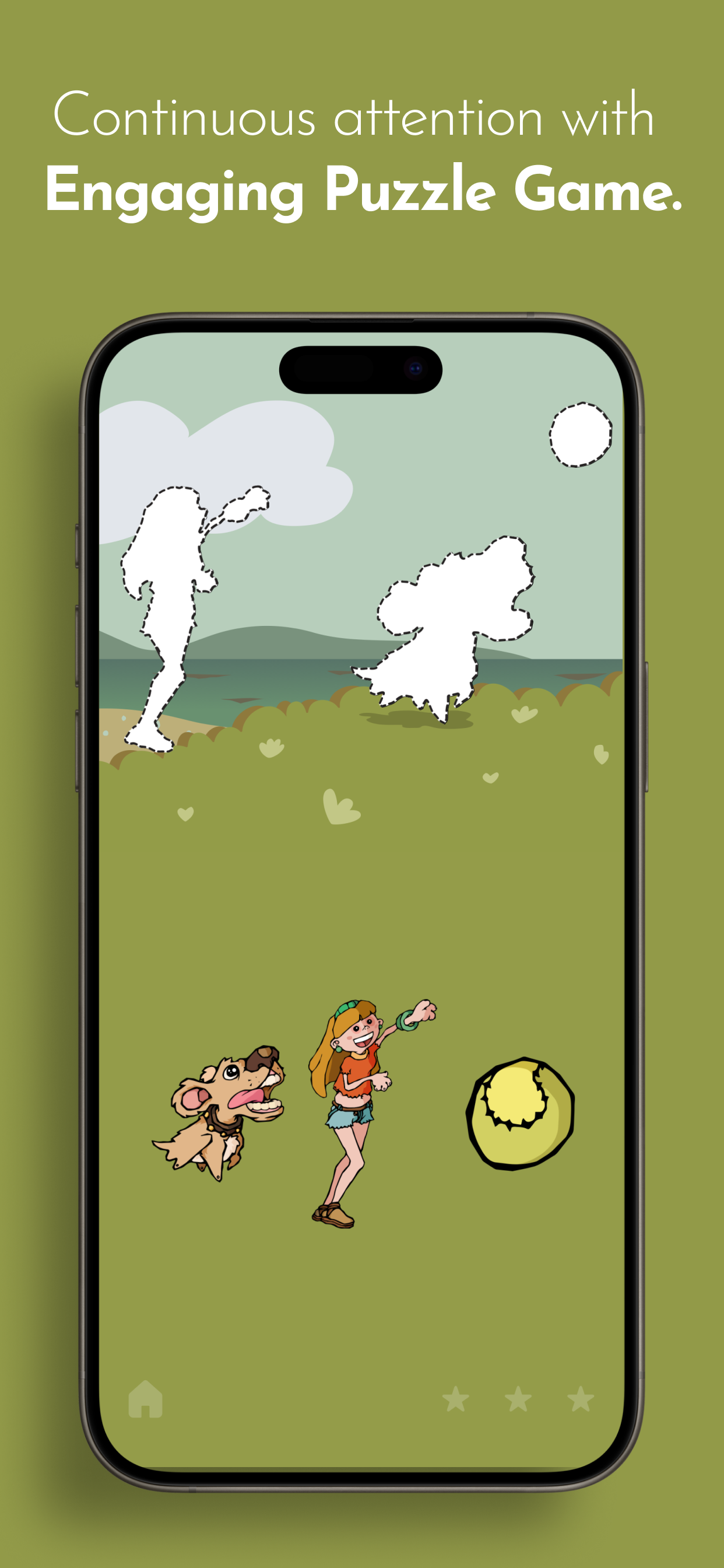
What is Puzzle Mode?
What does the Recording feature do?
What is "Show Question Text"?
What are "Auto Read Questions" and "Auto Read Answers"?
What is Progressive Play?
iCloud & Data Management
Does my data sync between my iPad and iPhone?
What if I delete the app? Will I lose my data?
How do I delete a student's data?
Can I share student data with another teacher?
Troubleshooting
My student data isn't syncing between devices. What should I check?
- Confirm you're signed into iCloud on both devices (Settings → [Your Name] → iCloud)
- Make sure the app has iCloud permission enabled
- Try closing and reopening the app to trigger a sync
- Give it a moment—sync can take a few seconds
How do I reset the tutorial bubbles?
The app is in the wrong language. How do I change it?
Contact Us
You can write to us about any topic you wish.
Looking for the home version?
← Compare with Standard EditionCompare Editions
| Feature | Standard | School Edition |
|---|---|---|
| 30 illustrated cards | ✓ | ✓ |
| Jigsaw puzzle game | ✓ | ✓ |
| Record & Listen | ✓ | ✓ |
| Voice-overs | ✓ | ✓ |
| Customizable settings | ✓ | ✓ |
| Student profiles | — | ✓ |
| Custom settings per student | — | ✓ |
| Free Play sessions | — | ✓ |
| Progress tracking | — | ✓ |
| Daily charts | — | ✓ |
| Session history | — | ✓ |
| Discrete scoring | — | ✓ |
| iCloud sync | — | ✓ |
Privacy Policy
We don't collect personal data. Student information stays on your device.
Summary
This app is designed for use with children in educational settings, and we take privacy seriously. The short version: we collect no personal data on our servers, student data stays on your devices and in your iCloud, and we do not track students.
What We Collect
We collect no data on our servers. Student names and session data (cards studied, scores, dates) are stored on your device and synced through your personal iCloud account. That data lives under your Apple ID on Apple's iCloud servers — we never see it. The app itself never sends us anything: choosing “Email us” on the Support screen simply opens a draft in your own mail app, and we receive only the email you decide to send.
Children's Privacy (COPPA)
We do not collect personal information from children. The app stores student names locally for organizational purposes — they are entered by the educator and kept only on the educator's devices and iCloud. We recommend using first names or initials to minimize the personal information stored.
Audio Recordings
With the Record & Listen feature, recordings are stored only on the device — one per card, and each new attempt replaces the previous one. Recordings are never uploaded anywhere and are deleted when the app is removed.
Analytics and Tracking
The School Edition contains no analytics or tracking of any kind. We use no analytics SDKs, no advertising trackers, and no third-party code that collects user data — neither yours nor your students'.
Third-Party Services
Apple's App Store handles purchases and may collect data under Apple's privacy policy. Apple's iCloud syncs student data under your Apple ID; that data is subject to Apple's privacy policy and is encrypted in transit and at rest. We use no other third-party services.
Data Storage
All app data is stored locally on your device. Student data is also synced to your iCloud account (if enabled on your device). Deleting the app removes all local data. iCloud data can be managed through your device's iCloud settings.
Your Rights
Because we collect no data on our servers, there is nothing to request, correct, or delete from us. Local app data can be removed by deleting the app. iCloud data can be managed through your device's iCloud settings or by deleting student profiles in the app.
Data Retention
Student data remains until you delete it in the app or remove the app entirely. iCloud data remains until you remove it from your iCloud settings.
Contact
Questions about this privacy policy? Reach us through our Contact page.
Changes to This Policy
If our practices change, we will update this page. Significant changes will be indicated by a new "last updated" date at the top.
Last updated: August 2026